Restrict Access to Third-Party Browsers


Introduction
I believe all IT administrators have faced this headache. We have to restrict access and downloads of 3rd party browsers such as Firefox, Chrome, Opera. However if you are not currently utilizing AppLocker or WDAC, it can be a struggle to restrict this in a "easy" way without a full implementation of the technologies mentioned before.
Luckily Microsoft Edge Management service can help us, and in combination with our favourite tool Microsoft Intune, we can deploy a AppLocker policy directly to our Windows devices.
Things to Consider
Before implementing this from the Microsoft Edge Management service, there is multiple things to keep in mind and consider before the implementation.
- Communication to the organization is important for a successful implementation. Make sure to communicate what is happening, and when it's happening. When there is a impact for users, it will create noise. What about their bookmarks, passwords and history in the browser?
- Help migrate bookmarks to the Edge browser, and if you are implementing a password manager for the organization, create specific guides for that to the end users.
- Once everything is covered, and you have reached the deadline (as communicated from earlier), you can go ahead and implement the policies.
- What should happen once the policies has been implemented? How long should you wait afterwards, before you start removing the browsers that are not allowed?
Configuration
It's fairly easy to configure and deploy to a set of test devices in your environment. First of all, you have to navigate to admin.microsoft.com, unfold the settings category, and lastly click on Microsoft Edge.
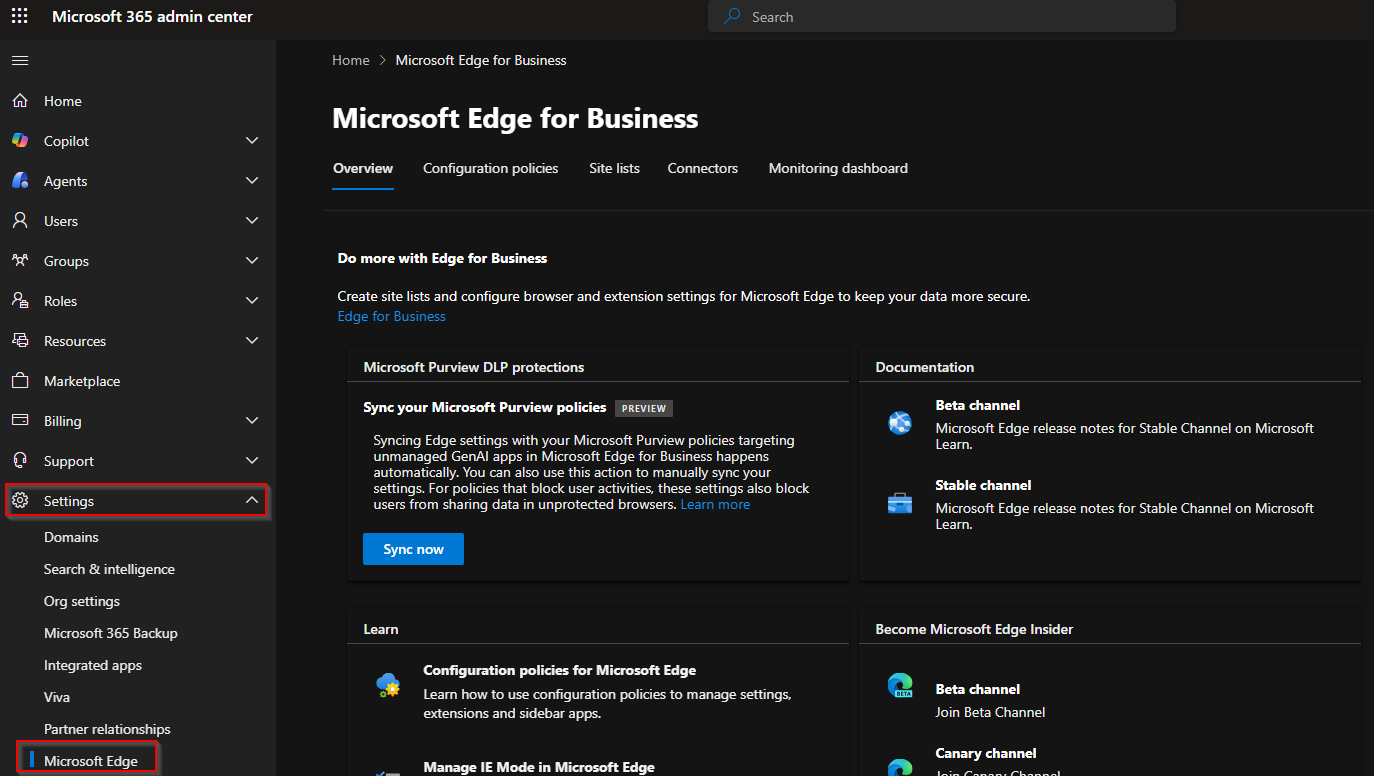
In here you can see some very interesting things, that I would highly recommend you take a look at. Currently for us, we need to navigate to the configuration policies tab.
In here, you can find all your Edge configurations from Intune and from the service itself.
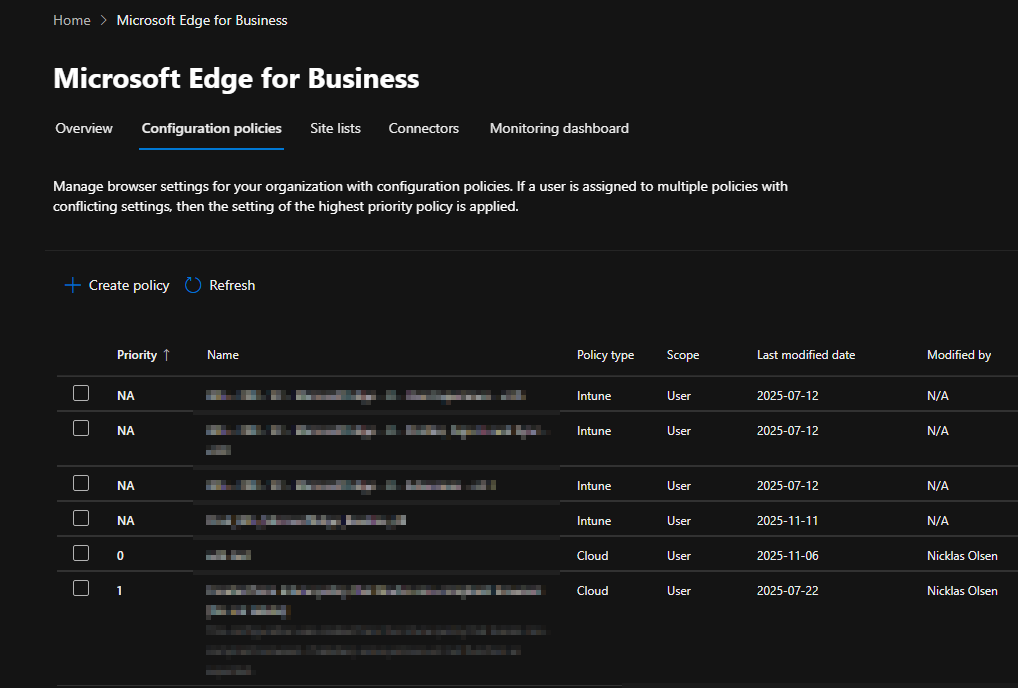
From the policy type category, you can see whether the policy originates from Intune or the service.
Back to the topic, so if we would like to enable the AppLocker policy, we can pick an existing policy, and enable it from there. There is also another option, which I will not cover in this blog.
I prefer to enable it via an existing policy, however there is a downside for that approach, because if you choose to delete that policy, the AppLocker policy will also be removed.
- Select an existing policy, and click on customization settings. From here navigate to the security settings, and the policy that does the magic is "Enforce secure enterprise browser access".
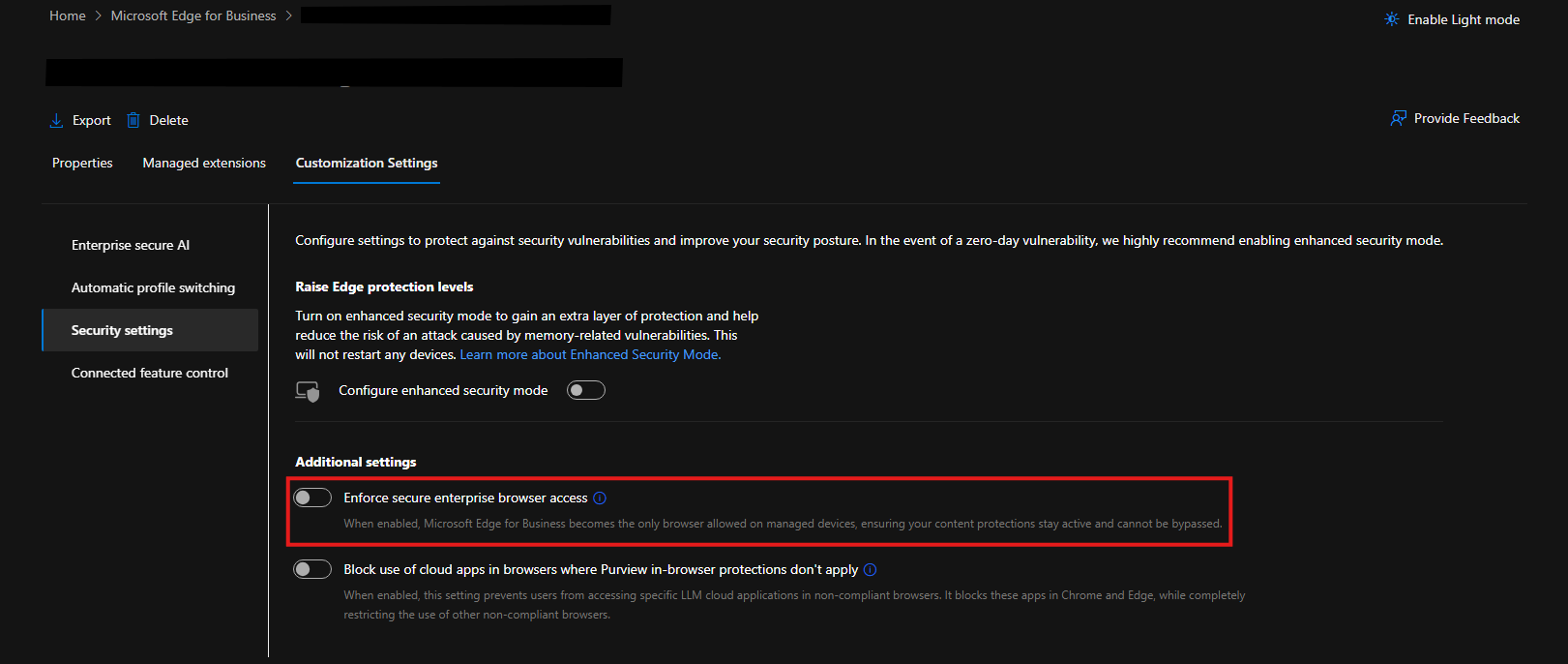
- Once you've activated it, a new policy will be created in Intune.

- This policy will contain 2 different configurations for AppLocker. This policy will cover both exe and store apps.
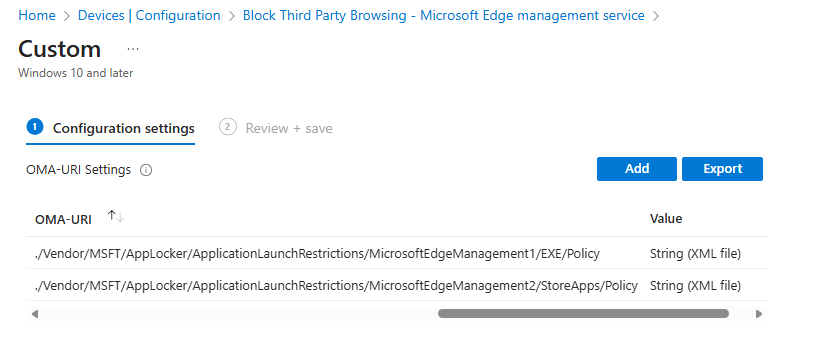
You can open up each of them, and see what it actually blocks. There is a lot of browsers, that will be blocked once it's being activated, so be very careful before activating it for all users.

Device Perspective
If you take a closer look on the device, you will be able to find the AppLocker policies. Navigate to C:\Windows\System32\AppLocker\MDM\<>\<>\AppLocker\ApplicationLaunchRestrictions.
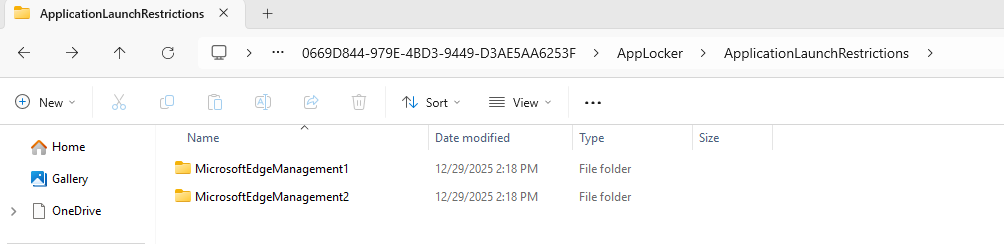
The policy targeting "EXE" is stored inside of the "MicrosoftEdgeManagement1", while the policy targeting "StoreApps" is created in "MicrosoftEdgeManagement2".
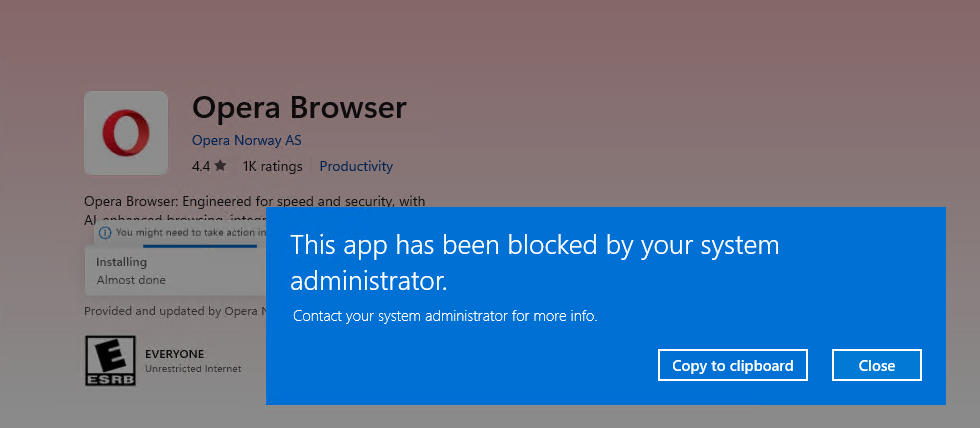
Now that it's applied to the devices, the user will see that it's not possible to use and install Opera as an example. In the below example, we've tried to install it from the Microsoft Store.
You can also view the AppLocker event logs on the device. If you open event viewer, and unfold the "Applications and Services Log", Microsoft and Windows. Under the Windows section, we will be able to find the App Locker folder. Once you open the EXE and DLL logs, you will be able to see all the information.

If the user already has one of the browsers installed, they will also recieve the same pop-up, once they try to open the browser.
Conclusion
Thanks for reading this blog, I hope it gave you some insights into how you can restrict the use of 3rd party browsers. It's important to mention as well, that it doesn't cover all browsers, so keep that in mind.
Take a moment, to consider the steps before implementing it in your organization. It's important to do it the right way, so the users are happy with the IT-department.