Restrict the Use of Extensions in Microsoft Edge - Part 2


Introduction
This is part 2 of how you can restrict the use of extensions in Microsoft Edge. In part 1 we discovered, how you can block extensions with the Microsoft Edge Management Service. Take a look at that blog here.
In this blog post, we will take a closer look at how you can restrict extensions with the help of policies from Microsoft Intune.
Things to consider
As mentioned in the other blog post, it's a must to consider how you want to mange the browsers in your organization. It's impossible to restrict extensions in every browser that is out there, so it's important that you have a policy about browser usage.
Communication to the users is critical, so there isn't any users missing extensions that are important for their work. Inform them about the possibility of request a extension if needed, and the process of that.
Configuration
We will take a look at how you can configure extension restrictions through Intune. It's fairly simple, and doesn't require a lot from you as a administrator.
- Navigate to the Intune portal, devices and click on configuration. From here, you will have to create a new policy from the settings catalog.
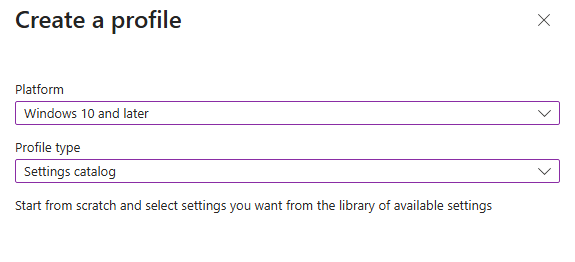
- Name the policy according to your naming convention.
- From here you have to select a few policies, in order to configure it properly.
- Control which extensions cannot be installed
- Define "*" in the setting, in order to block all extensions from installing.
- Blocks external extensions from being installed
- Blocks external extensions that are installed outside Edge Extension Store.
- Allow specific extensions to be installed
- In case there needs to be specific extensions allowed.
- Once you have selected the settings, it should look similar to my configuration below.
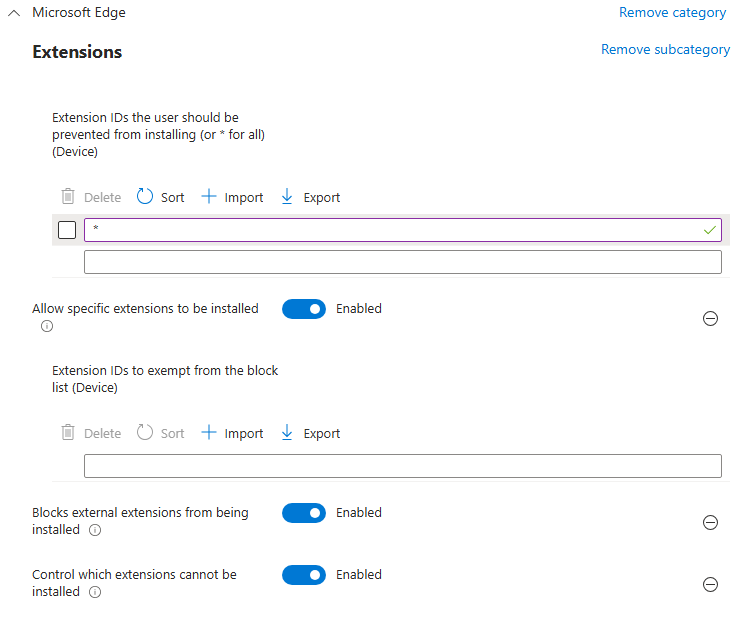
Be aware, if you don't have any extensions that should be allowed to start with, just leave that policy out for now.
Once you've configured your policy, you are now ready to test on a test group.
Device Perspective
When looking whether the policy has been applied or not, you can look a few places.
The first place is directly in Microsoft Edge. You can access it by searching for "edge://policy".
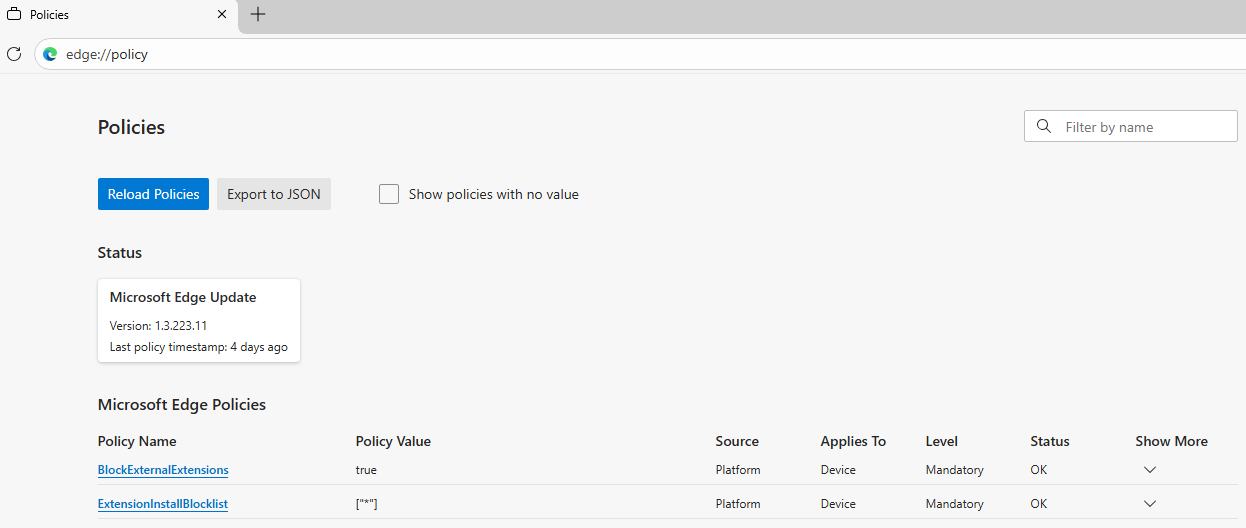
As you can see here, there is currently 2 policies configured. We can see that our two policies has been applied, and which value it has been configured with. If you take a look at the "source" column, you can see whether it's from Edge Management Service (Cloud) or Intune (Platform).
The second place you can find some valuable information, is if you open the registry editor on the device. Navigate to "HKEY_LOCAL_MACHINE\SOFTWARE\Microsoft\PolicyManager\current\device" under here you will find a folder called "microsoft_edge~"
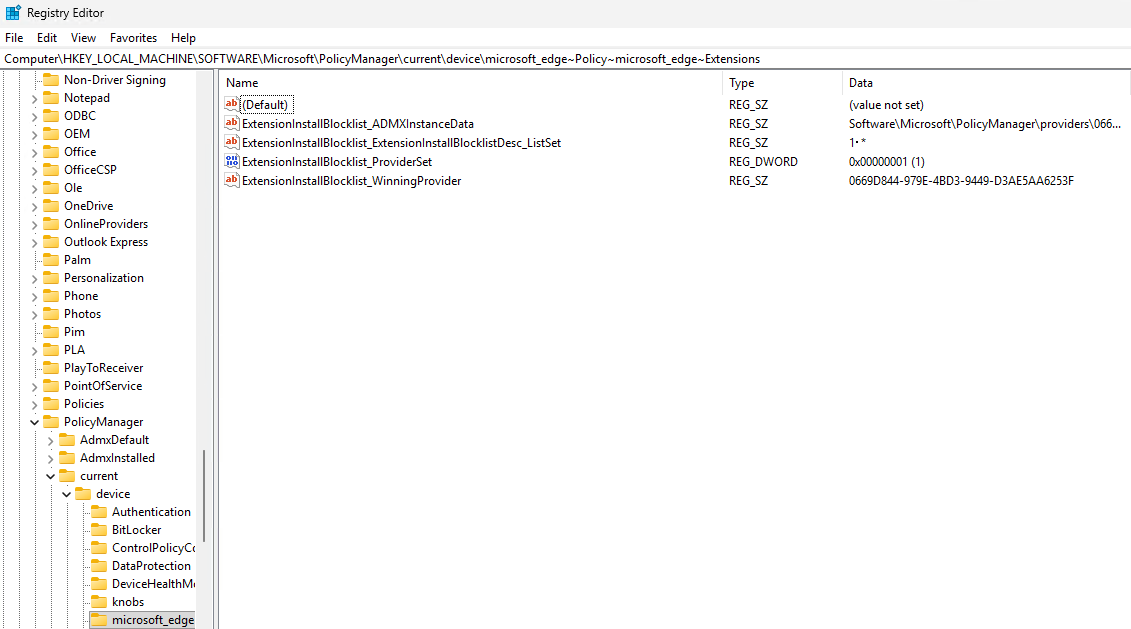
The policies we've configured in regards to extensions will be visible here including their value.
Exclude a Extension
There might be cases, where you have to exclude a extension. Let's try to take a look at how that work.
- First step is to find the specific extension, that you want to exclude.
- Once that's done, we have to find the extension ID. You can do that by clicking on the "Get" button, and then it will return an error message.

The extension ID is displayed in the error message itself, or you can simply copy it from the URL as showen in the screenshot above.
- Now you have the extension ID, we can make the exclusion in Intune. Edit your policy, and enable the policy called "Allow specific extensions to be installed" and add your extension ID as shown below.
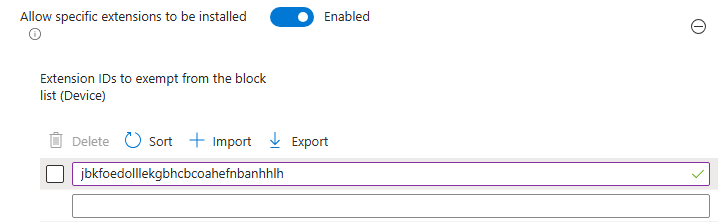
- That's it! Now you can go ahead and test the policy.
Conclusion
Thank you for reading this blog, I hope it gave you some insights on how to block extensions with Microsoft Intune.
If you're looking into restricting extensions, I would highly encourage you to look at both Edge Management Service and Intune, to see which solution can fulfill your needs.