Collect Diagnostics: Extending with Custom Logs

Introduction
You might have faced the challenge, where you are missing logs, when you are performing the "collect diagnostics" remote action from the Intune console.
I have been there myself, and I want to share how to add custom log entries, when collecting diagnostics from Intune.
Collect Diagnotics
What is a remote action? What is collect diagnostics? That's a great question! So the remote action I am referring to is the collect diagnostics, that is available from the Intune portal. It will automatically collect a set of predefined logs, that you can see in the registry.

To see which logs are collected, you can open the registry editor on a device. If you browse to the below path, you can see every section of the MdmDiagnostic logs.
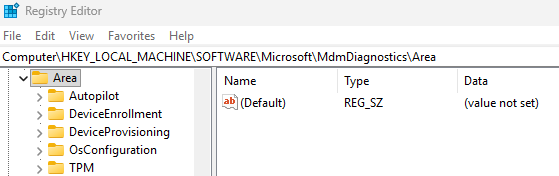
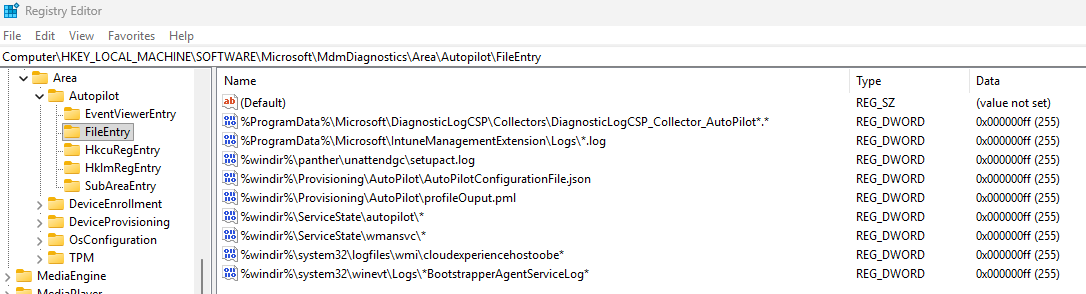
If you expand one of them, you will be able to see what kind of logs it's collecting. It's collecting logs from event viewer, files, registry keys and executing commands. You will be able to see all of it, if you go through all the folders.
When we click on the collect diagnostics remote action in Intune, the service will try to collect the logs from the device. Once it's been collected from the device, the logs will be available from the Intune portal, where you can go ahead and download it.

Once it's downloaded from the Intune portal, you can extract the files and you will see a lot of useful things for your troubleshooting!
Additional Logs?
Once in a while, there might be logs that are out of scope of the current setup. Luckily for you and me, there is a possibility to add additional entries.
You can do that with the help of platform or remediation scripts. It's actually quite simple, you can do it with a one liner in PowerShell.
New-ItemProperty -Path "HKLM:\SOFTWARE\Microsoft\Mdmdiagnostics\Area\Autopilot\FileEntry" -Name "%ProgramData%\ITLogs*" -Value "255" -PropertyType DWORD
This command will create a entry in the Autopilot section under the file entry folder.

What does this collect? When you define the "*" by the end, it will collect everything in that specified folder. You can also define a specific extension such as .log or a specific file in a folder.

Where can I find the additional logs?
So we've added the additional logs, and performed a new log collection from Intune. Let's take a look at where the files are located in the logs. If you open the diagnostic files and browse in "FolderFiles temp_MDMDiagnostics_mdmlogs-date".
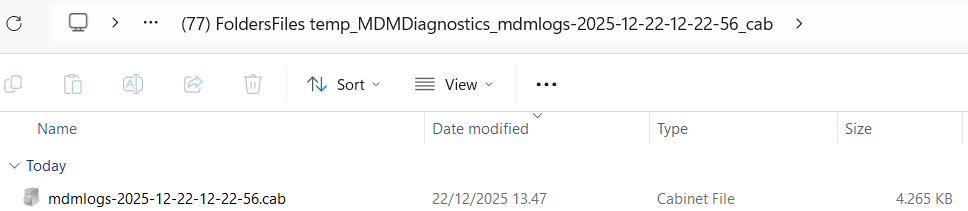
You will see a .cab file inside of that folder, and if you try to open that, you will see the files that are included from your custom log entry.
Conclusion
Thanks for reading this blog, I hope it helped with adding additional logs to the remote action in Intune.
Have a great christmas, and a happy new year!