Restrict the Use of Extensions in Microsoft Edge - Part 1

Introduction
You might have been tasked with restricting installation of extensions in Microsoft Edge, when reading this blog. Extensions now a days can also be malicious, so it's important to make a decision about restricting it in your browsers.
Before looking in to this, it might be worth looking into restricting which browsers that are currently allowed in your organization. It's pretty hard to restrict extensions in every browser that exists, so I would recommend you looking at this blog.
Things to Consider
There is a few things to consider, one of the things is of course to restrict which other browsers that are allowed.
Communication to the users is critical, so there isn't any users missing extensions that are important for their work. Inform them about the possibility of request a extension if needed, and the process of that.
You can block it with Intune and the management service, but in order for the management service to apply the policies, the user has to be logged into Edge. This can be configured in Intune.
Configuration
Restricting the use of extensions in Edge, can be done in different ways as mentioned earlier. In this blog, we will mainly focus on doing it with the Microsoft Edge Management service.
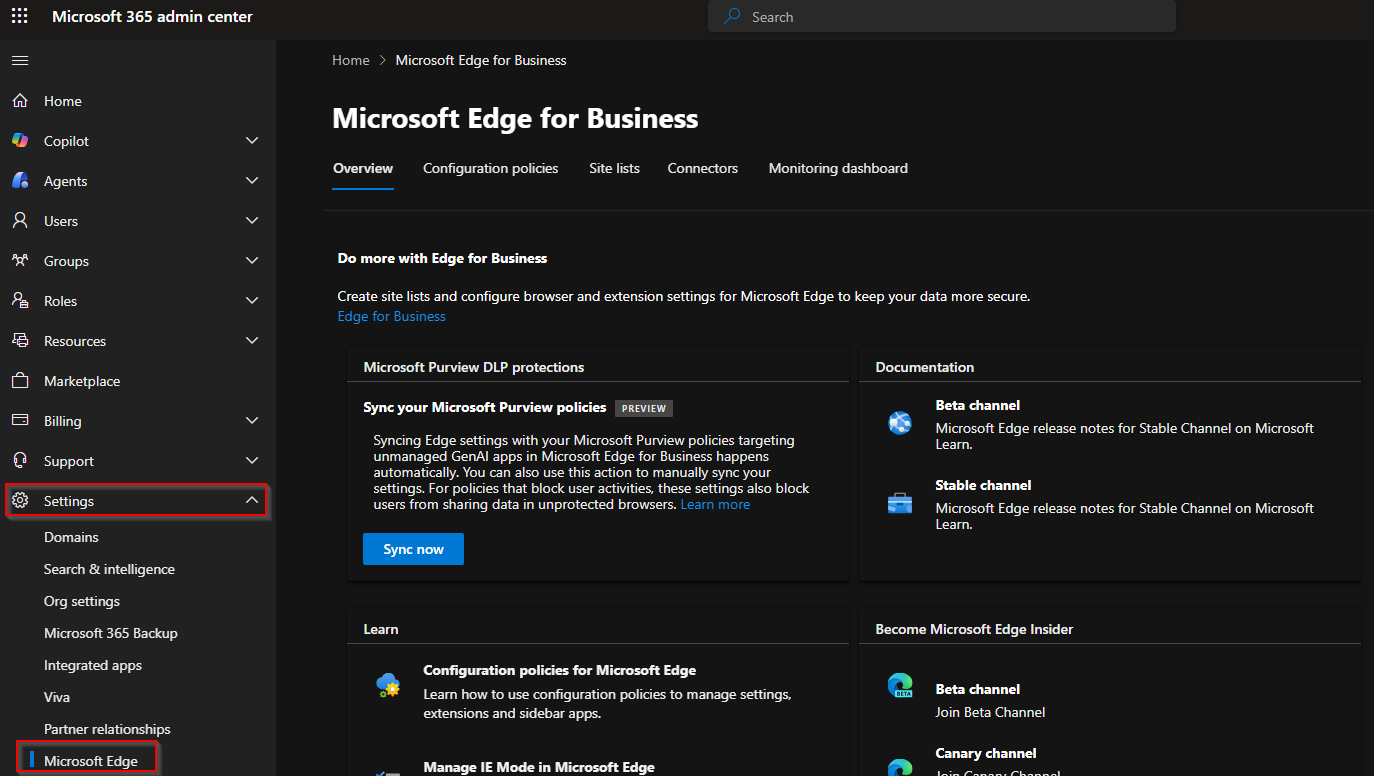
- Navigate to admin.microsoft.com, unfold the settings category, and lastly click on Microsoft Edge.
- Click on the configuration policies tab, and from here you can see all the policies created in the service and Intune.
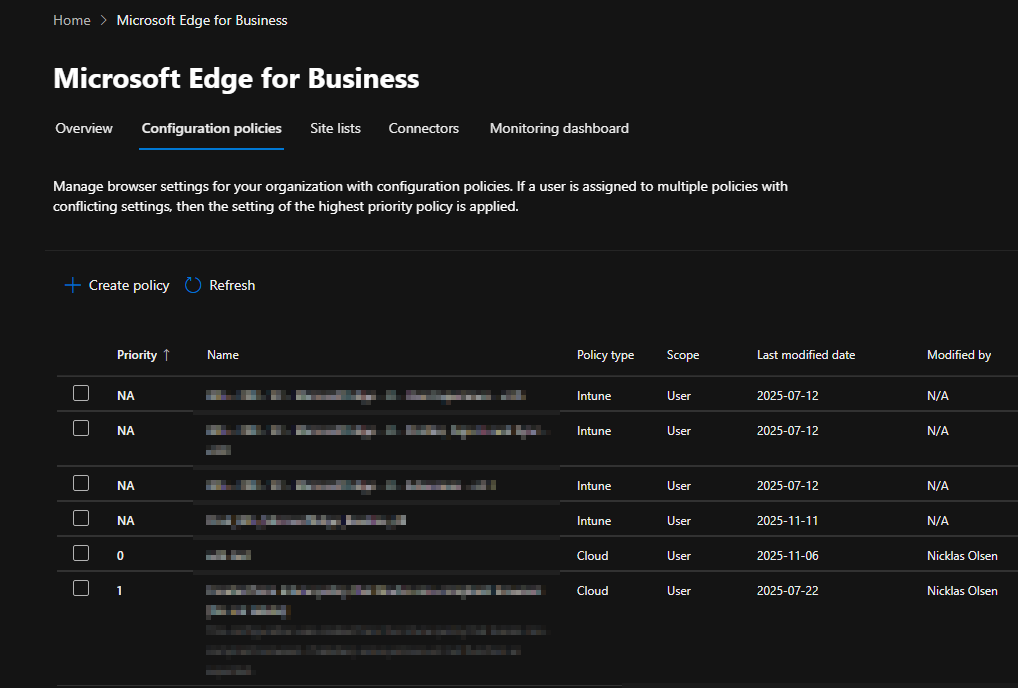
- Can you see the create policy option? That's what we would like to do. Click on that, and give your policy a name. The policy type is cloud, and not Intune.
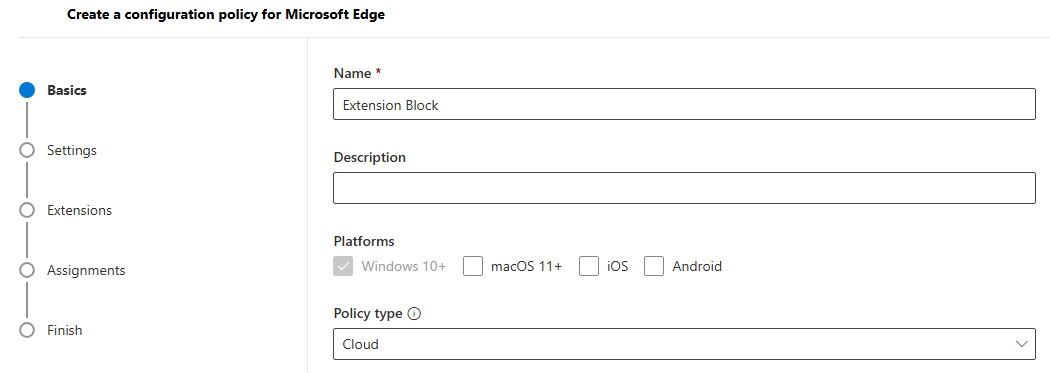
- Click on next, and you don't need to configure anything under settings. Click next again, and under extensions is where the magic is happening.
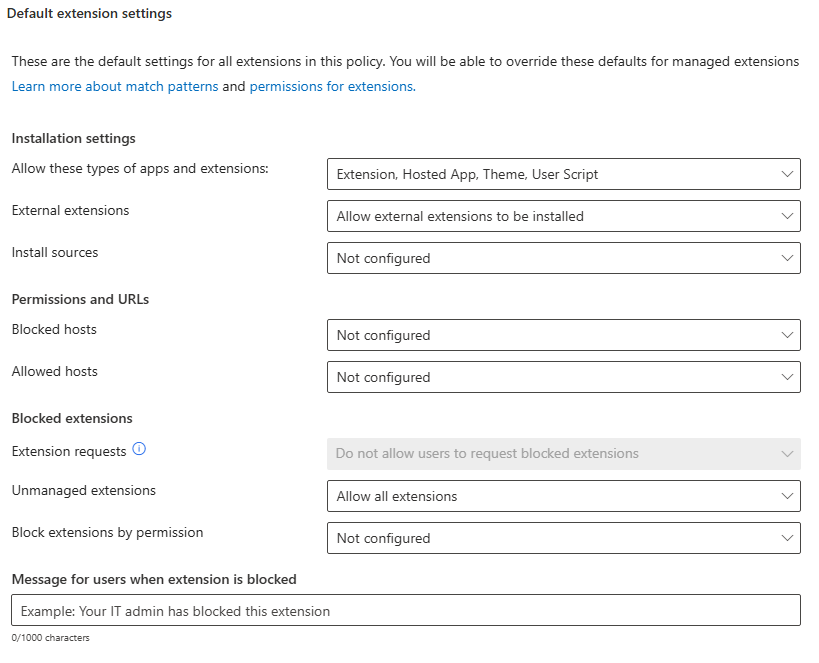
From here you can configure all the things that are related to extensions. I will make it as restrictive as possible, and allow the user to request a extension if they need it.
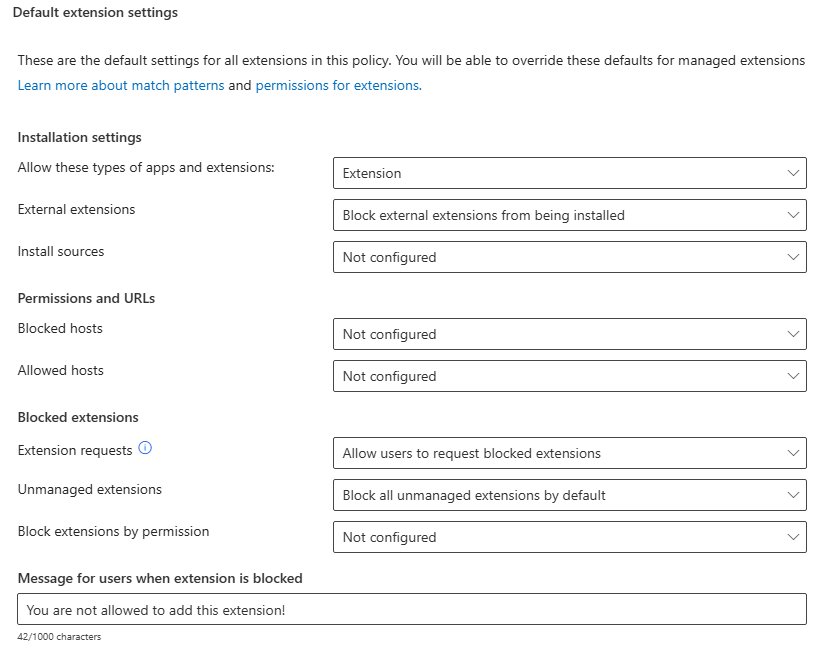
It's important to allow the type of apps and extensions, that the user should be allowed to request under "Allow these types of apps and extensions", otherwise the extensions will not be installed correctly once approved.
- Assign it to a test group, this group must contain users. Device assignments is not possible.
Once that's done, you will now be able to see your policy in the list.
Managed Extensions Configuration
Once your policy is created, you will have to take a closer look at the "Managed extensions" tab.
- Navigate to your newly created policy, and click on the "Managed extensions" tab. Lastly, click on the reqeusts tab.
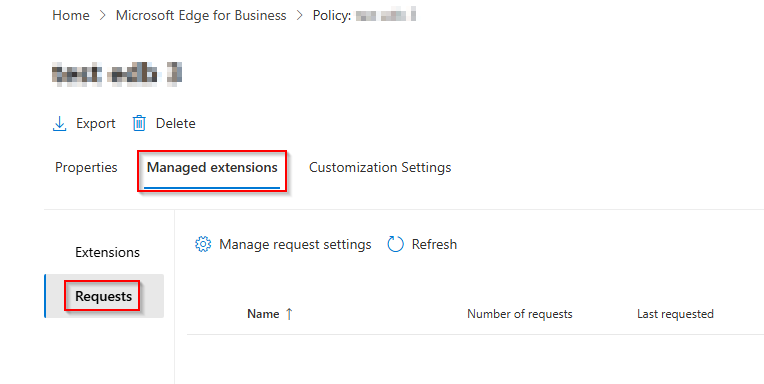
- Click on the "Manage requst settings". From here you can see whether your users is allowed or not allowed to request extensions. If you have configured it to be allowed earlier, it will be enabled now.
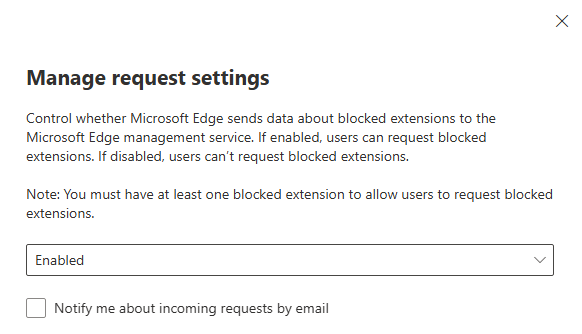
You also have the option to notify about new requests by email. It's possible to configure which email that should recieve this, and also the frequency of the emails.
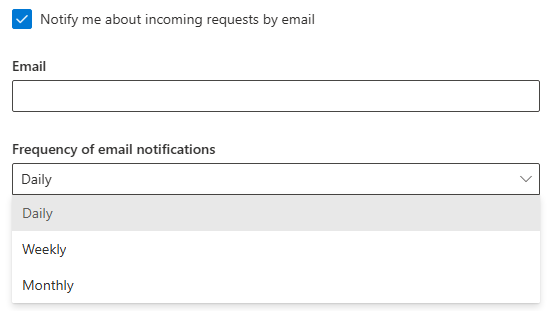
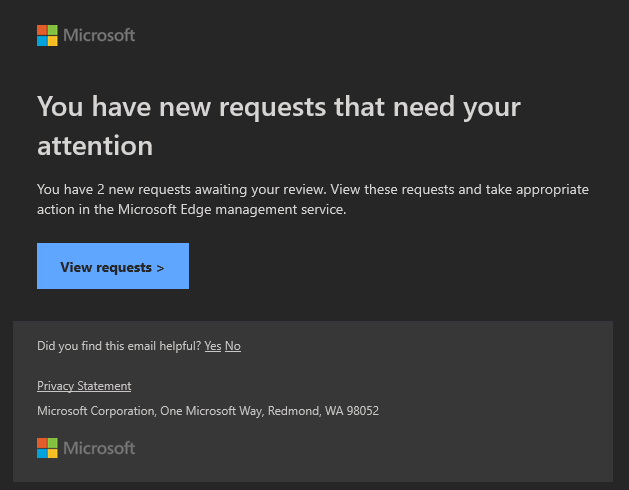
For the email, I would recommend a shared mailbox. Could be a mailbox, that are already in use by the IT department. The emails will look like this one below.
How Does It Work With Requesting Extensions?
When the user is in need of a extension in Edge, the user goes into the extension store, and finds the extension needed.
- The user clicks "Get" on the specific extension, and it now asks for a justification to be send to the IT admin.
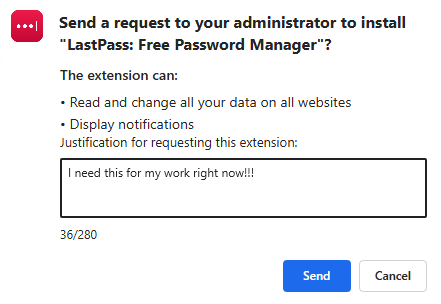
- Once the user has send in a request, the request will pop-up under the policy we created earlier. It will be visible under requests in the managed extensions section. Select the extension and click "Manage installation setting".
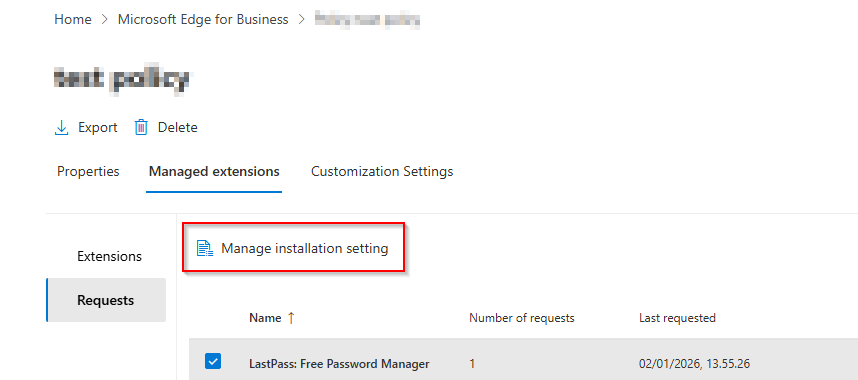
In here we can see the business justification by the user, and then we can take action based on the decision we make.
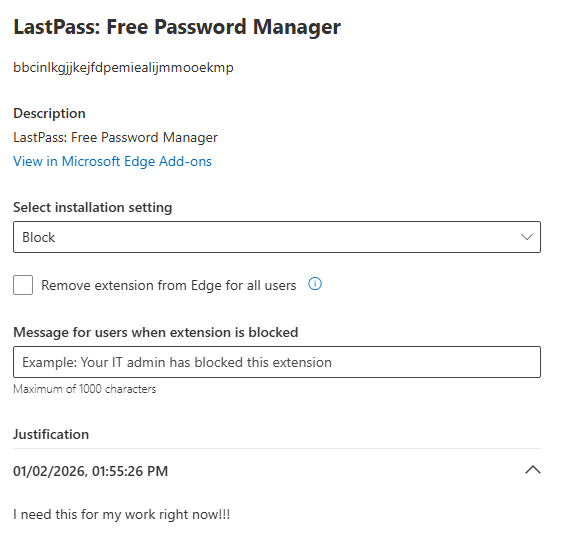
In order to select the correct installation setting, it's important to understand the difference between allow, block, force and normal. You can see the difference here in this MS Learn article.
- Once you've made a decision and selected a installation setting. You will now be able to see it under the extensions tab instead of requests.
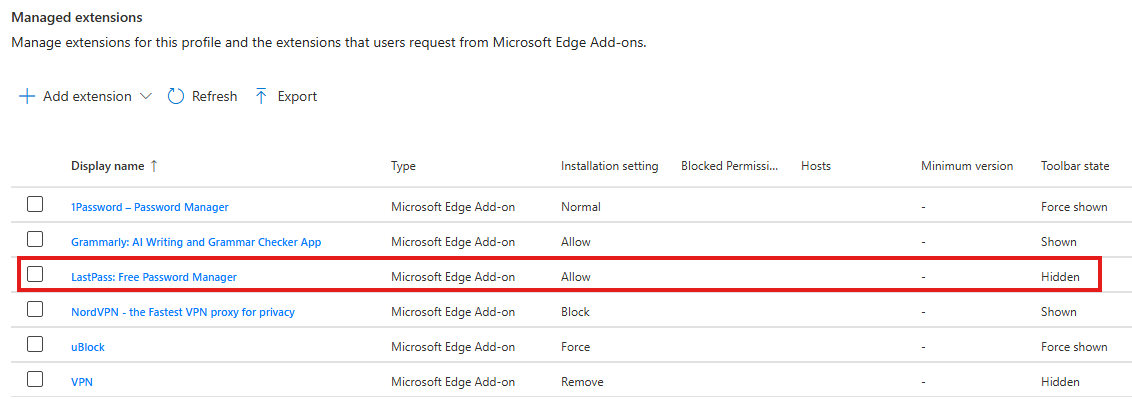
How Does the Different Installation Setting Behave on the Device?
Whenever you've performed a action on a requested extension, the user will see a notification on their device. As you can see below here, this is how it will look on their device.
Normal
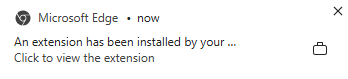
The extension is installed, and it's possible to remove from the device.

Allow
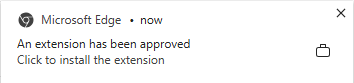
The extension is approved and the user can install it manually.
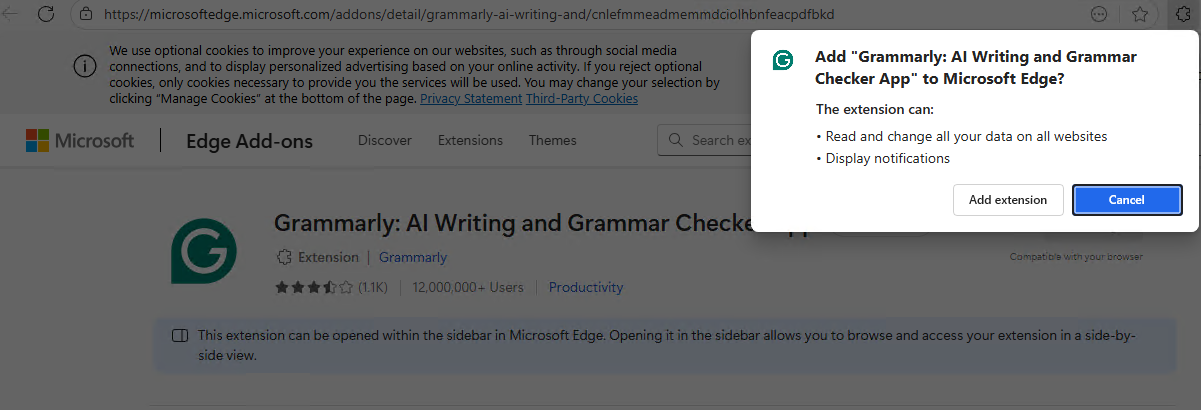
Force
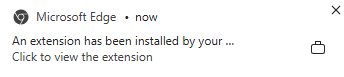
The extension is installed, and it's not possible to remove it on the device.

Block
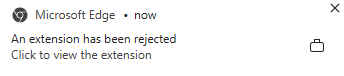
The extension is rejected, and it's not possible to install.
Tips & Tricks
Getting some insider tips, on where to look for troubleshooting, is always nice! Let's take a closer look, at how the policies will get applied to the device.
On the device, open Edge and search for "edge://policy"
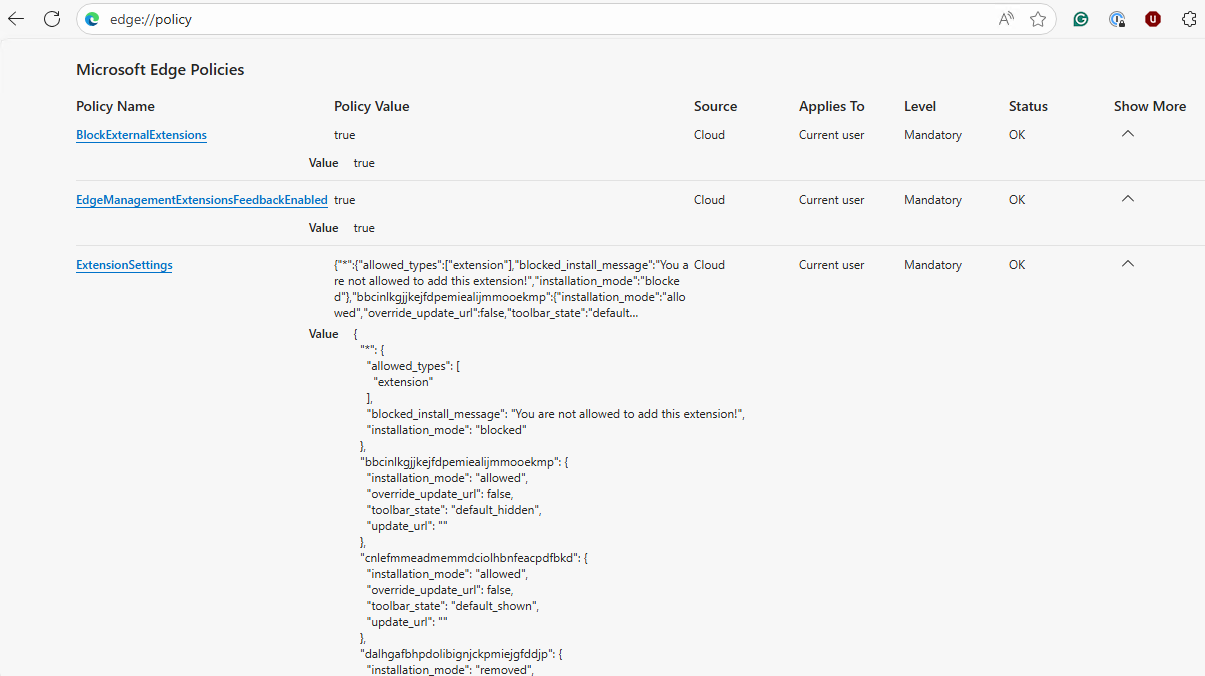
Here you can see the different settings, that we've configured, and what value. The interesting part here is the "Extension Settings", where you can see how the extensions are being handled.
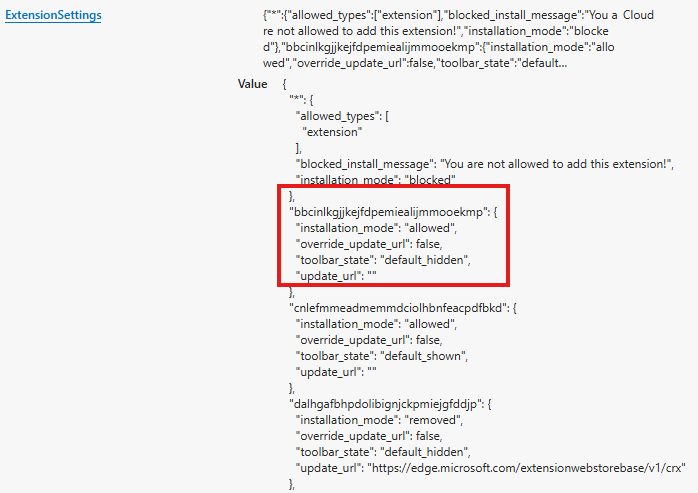
You can see the installation mode, toolbar state and update URL. That's pretty cool, in this way you can see whether your configuration has been applied to the device yet.
Conclusion
Thank you for reading this blog, there is a few ways to handle extensions. This one is worth exploring in my opinion, because it makes it possible for the end-user to request it directly through the browser.